Google Lens Manga Translation Comparison
translate manga with google lens vs Manga Translator
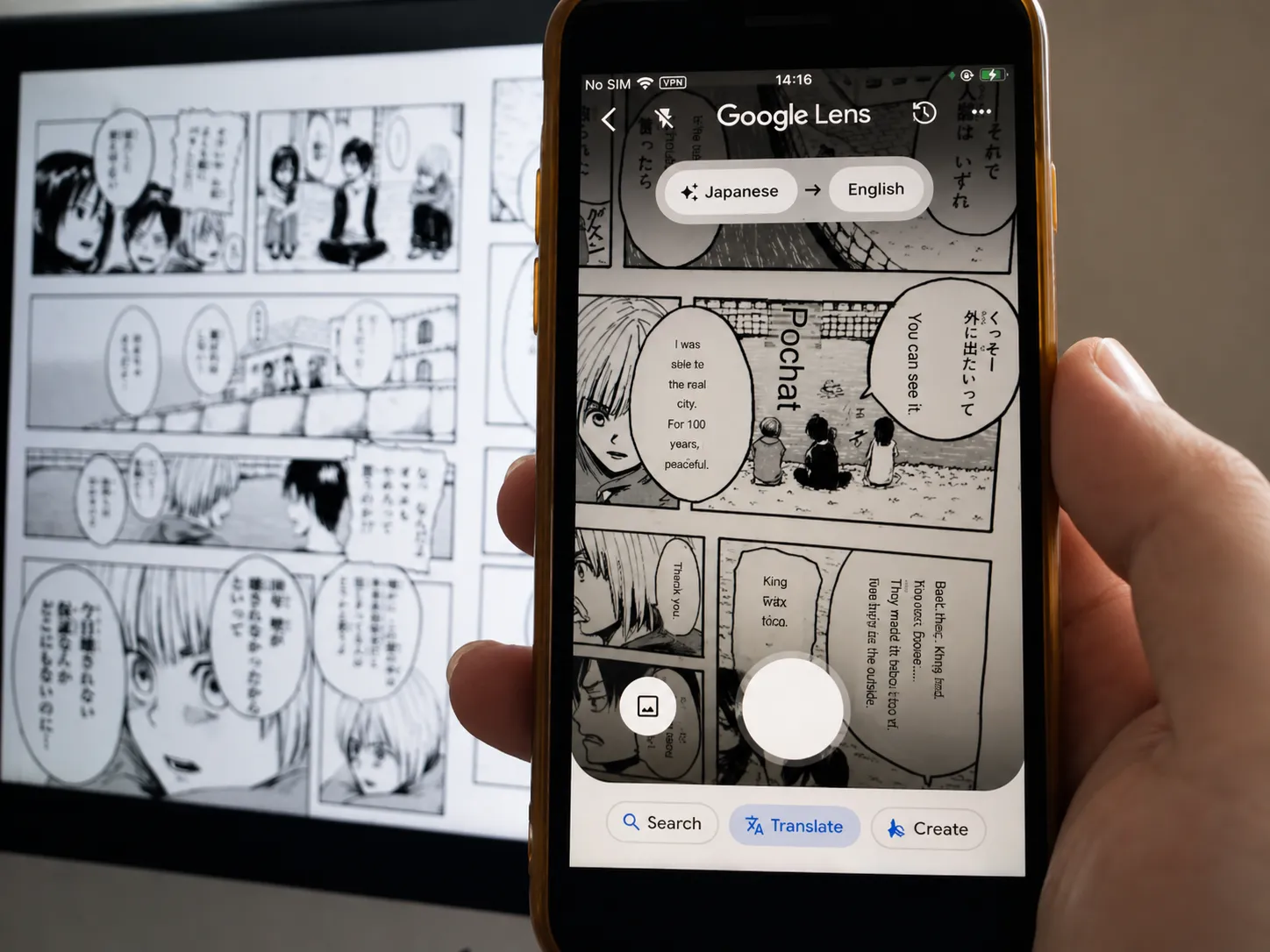
Many readers try to translate manga with google lens because it is already on their phone and the camera flow feels instant. It can help you understand a page quickly, but manga is not a normal document. A page can combine vertical Japanese dialogue, horizontal side notes, tiny captions, hand-lettered sound effects, and artwork that should not be covered. This comparison shows where Google Lens is convenient and where Manga Translator gives a cleaner, more readable manga translation result.
Daily login bonus: 10 credits.
Drag & drop images/PDF here, or
click to upload
Supports JPG / JPEG / PNG / Webp (≤5MB per image) / PDF / EPUB / CBZ (≤200MB per document)
What is Google Lens?
Google Lens is a visual search and camera translation tool from Google. You point the camera at text, a product, a landmark, or an image, and Lens tries to recognize what is visible. For travel signs, menus, labels, and short printed text, the translation mode is very practical. That is why many manga readers search for how to translate manga with google lens before trying a dedicated manga translator.
The limitation is that manga pages are designed as artwork, not plain text. Google Lens usually translates by placing blocks on top of the detected text. It does not fully clean the original speech bubble, rebuild the lettering, or preserve the panel as a finished translated image. For a quick meaning check, that may be enough. For a page you want to save, share, edit, or read comfortably, the result often needs a manga-specific workflow.
How to use Google Lens to translate manga
If you still want to translate manga with google lens for a fast preview, the basic flow is simple. Use it when you need the gist of a page, not when you need a polished manga translation image.
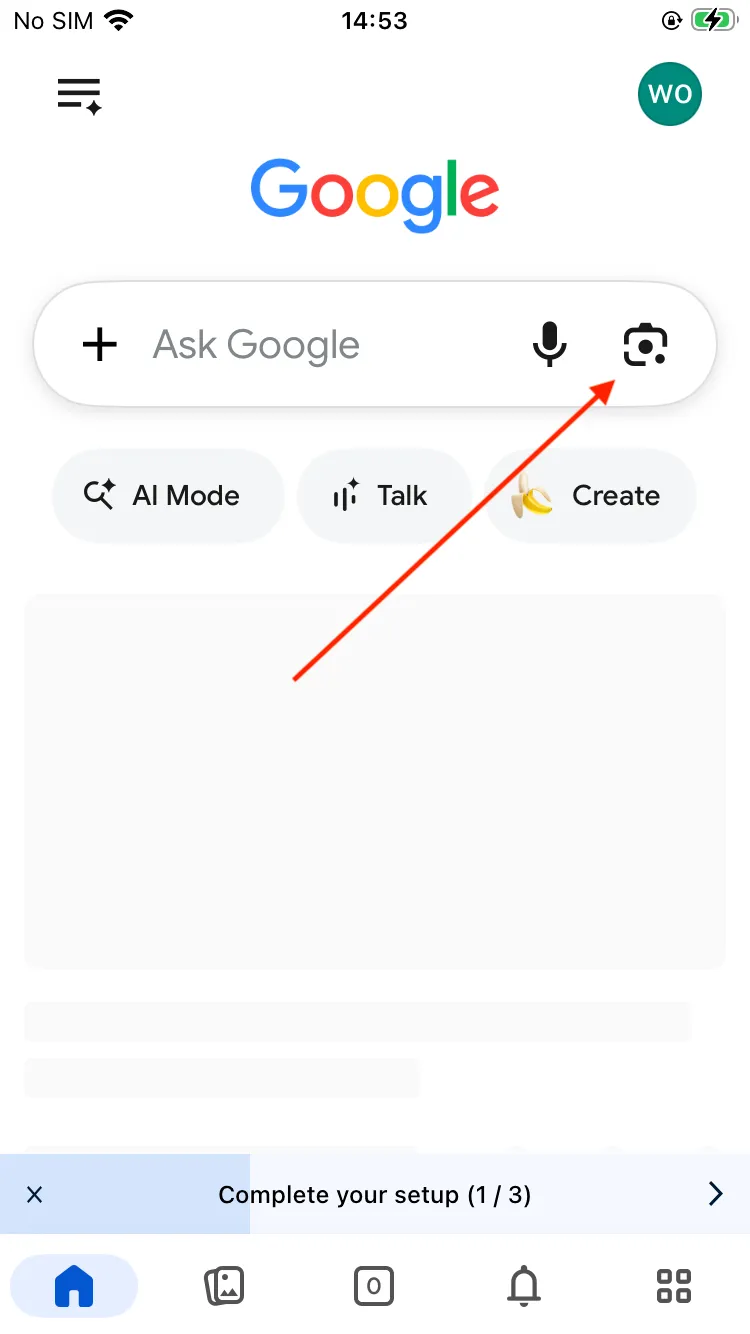
Open Google and switch to the camera
Open the Google app on your phone. Tap the camera or Lens icon, then frame the manga page so the speech bubbles are visible and not blurred.
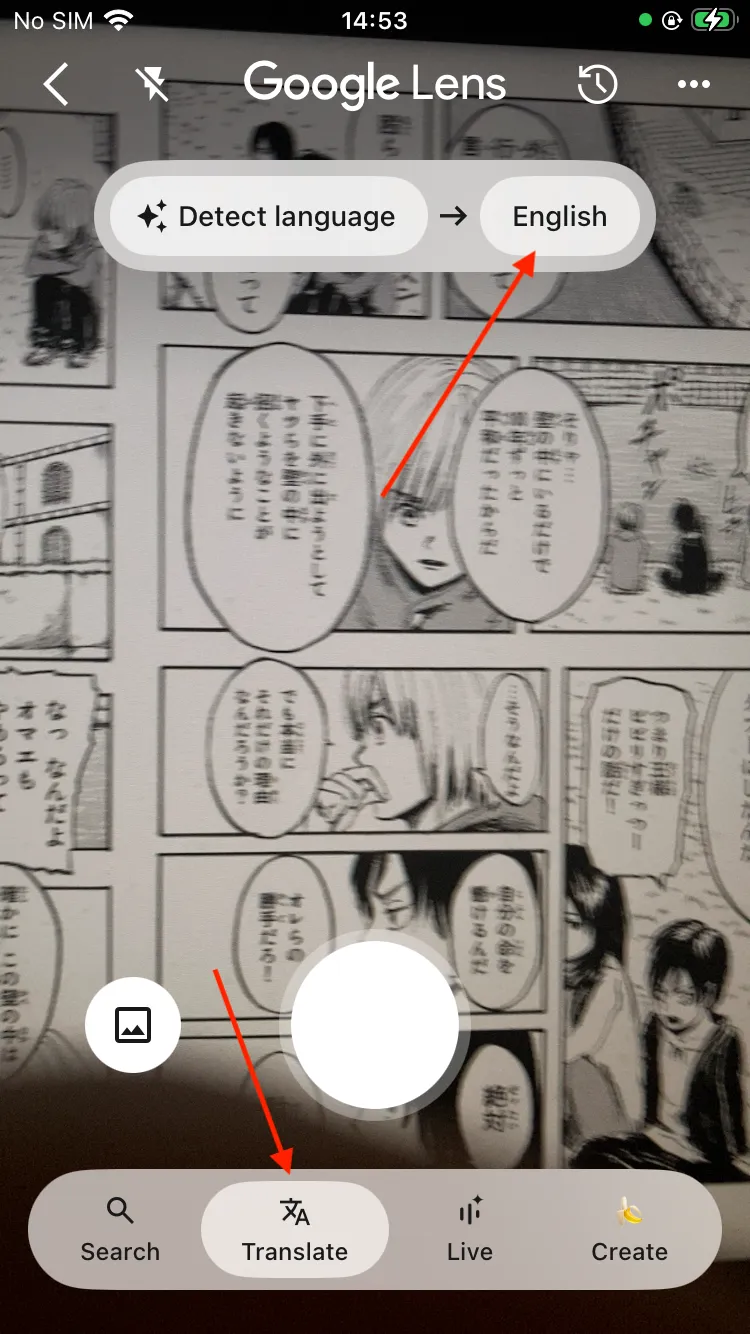
Choose Translate at the bottom
At the bottom of the Lens interface, switch from Search to Translate. Lens will scan the visible text and place translated words directly over the original manga text.
Set English or another target language
Use the language selector at the top. Choose English, or pick any language you want Lens to display. Review the page carefully because small text may be skipped.
Google Lens vs Manga Translator translation result comparison
The biggest difference is not whether the tool can detect text. The difference is how the final page looks after translation. When readers translate manga with google lens, the overlay may be enough for a quick answer, but the page often remains visually noisy. Manga Translator focuses on a finished reading image: clean bubbles, readable placement, and a layout that still feels like manga.
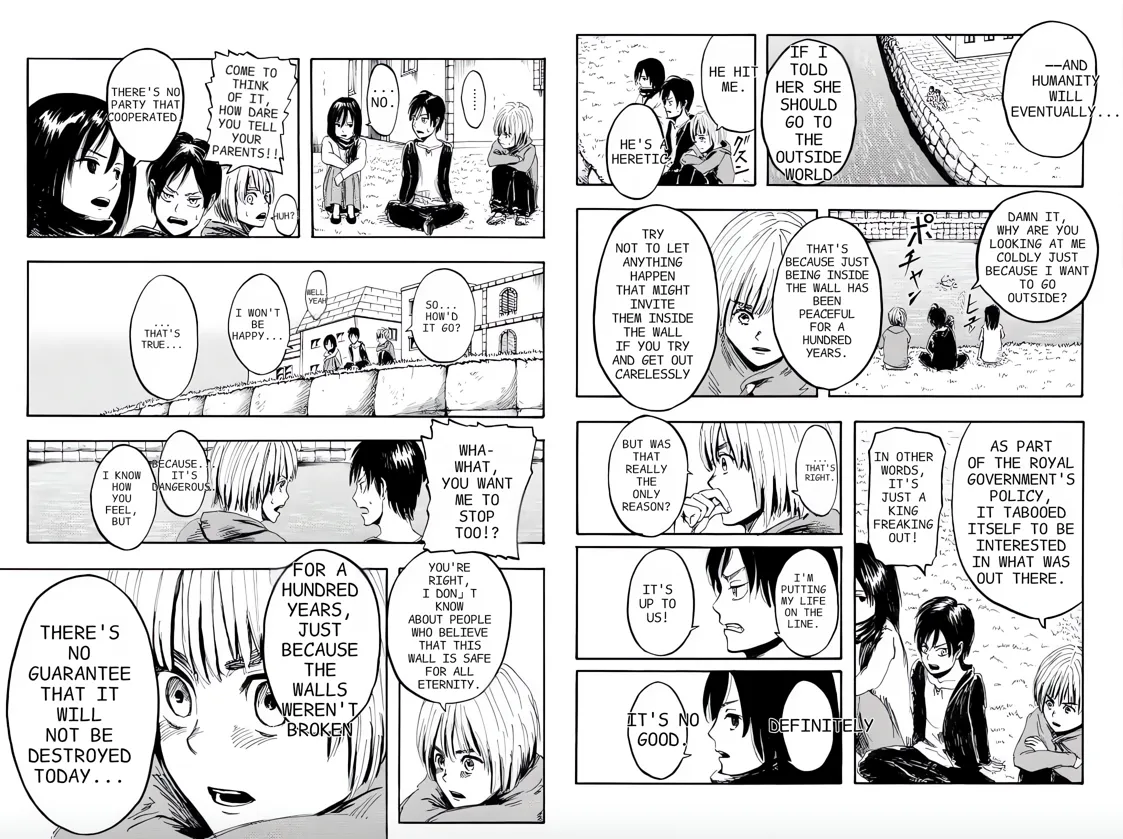
| Area | Google Lens | Manga Translator |
|---|---|---|
| Text direction | Often mixes vertical manga text with horizontal translated labels. | Keeps translated dialogue arranged for the bubble and page layout. |
| Missing text | Can miss small captions, stylized sound effects, or dense speech bubbles. | Uses manga OCR and review tools so more text regions can be checked. |
| Cleanup | Places translation blocks over the original page, so the panel can look patched. | Cleans bubbles before rendering translated text for a cleaner result. |
| Tone | Useful for a quick literal meaning, but context may feel flat. | Designed for manga dialogue, character voice, and readable phrasing. |
| Editing | The overlay is temporary and hard to polish. | Studio mode provides editable text layers and export options. |
Why choose Manga Translator instead?
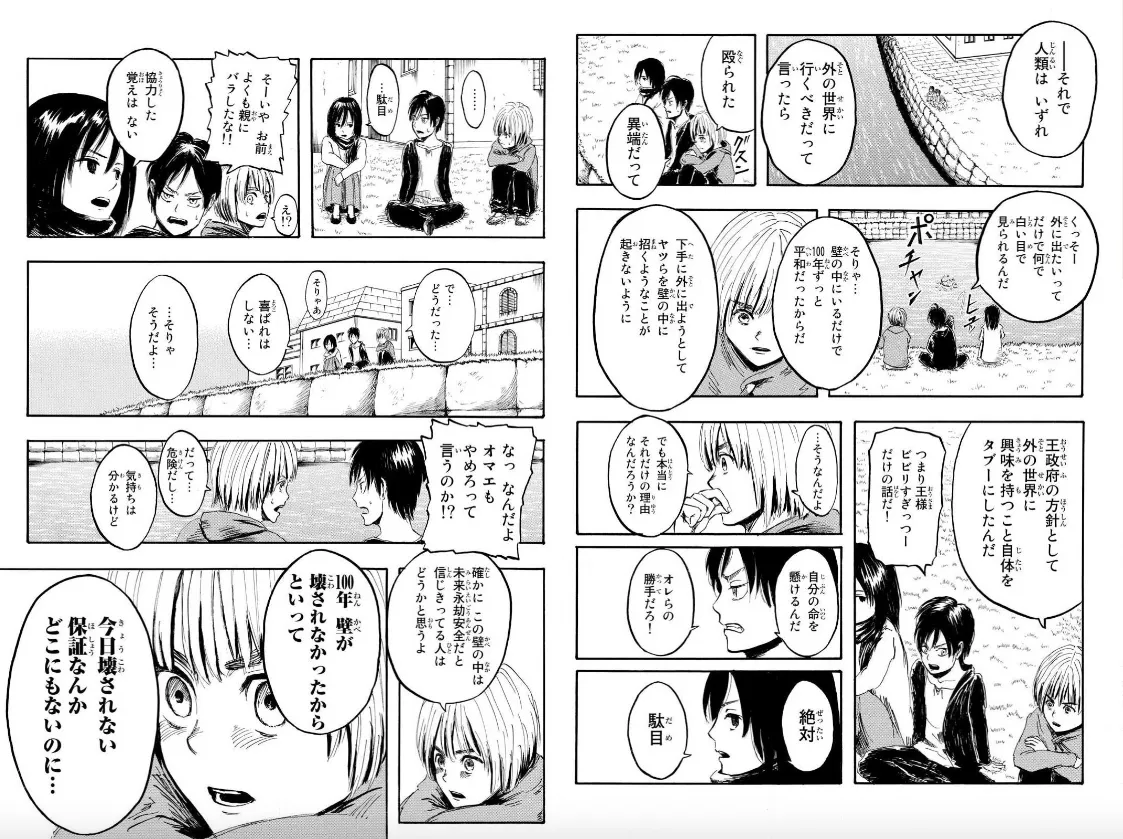
Choose Manga Translator when the page needs to be comfortable to read after translation. The workflow is built for manga pages instead of generic camera text. It detects speech bubbles and captions, translates dialogue with context, removes the original text area, and places the new text back into the panel. That means fewer distracting patches and a result that respects the original layout.
It is also better for tone. Manga dialogue is not just information; it carries emotion, pacing, jokes, honorifics, and character relationships. A quick overlay can explain what a line means, but a polished manga translation should sound like dialogue. When you want to translate manga with google lens, use it for speed. When you want clean pages, editable text, and consistent reading quality, use Manga Translator.
How to use Manga Translator
Upload your manga page
Start from the homepage quick translator or open Manga Translator Studio. Upload a manga image, screenshot, or page you have permission to process.
For a fast upload-first workflow, the manga image translator page explains the quick translation path in more detail.
Choose the target language
Select English or another language. The tool runs manga OCR, translates the detected text, and prepares the page for layout-aware rendering.
Review, edit, and export
For quick reading, review the translated image. For final quality, use Studio to edit text layers, adjust placement, clean bubbles, and export the finished page.
FAQ
These answers cover common questions from readers comparing Google Lens with a dedicated manga translation workflow.
Can I translate manga with google lens for free?
Yes. Google Lens is useful for a quick free preview when you only need to understand the general meaning of a page. The tradeoff is that manga layout, bubble cleanup, missing text, and vertical dialogue can be inconsistent.
Why does Google Lens look messy on manga pages?
Manga pages mix artwork, speech bubbles, captions, vertical Japanese text, horizontal notes, and stylized sound effects. Google Lens is a general visual translation tool, so it often covers the original lettering with blocks instead of rebuilding the page.
Is Manga Translator better for final manga translation images?
For polished output, yes. Manga Translator is built around manga OCR, bubble cleaning, layout-aware text rendering, tone control, and editable layers. It is better when the translated image needs to look clean instead of like a live camera overlay.
Do I need to install an app to use Manga Translator?
No. You can upload an authorized manga image in the browser, choose a target language, and review the result online. For detailed work, open Manga Translator Studio for editable text layers and manual adjustments.
Can Manga Translator preserve the original manga layout?
Manga Translator is designed to keep the reading experience close to the original page. It cleans speech bubbles, places translated text back into the page, and gives Studio users control over text size, position, and export.
What images can I upload?
Upload manga pages, screenshots, or panels that you own or have permission to process. AI Manga Translate does not provide manga downloads, chapter mirrors, or raw manga sources.
Get a cleaner manga translation result
Google Lens is helpful when you need a fast camera translation. AI Manga Translate is the better choice when the page should remain clean, readable, and close to the original manga design.